Support contingents are retainer plans that define allocated hours and pricing for support projects. You can set up multiple contingents per project — for example, a monthly retainer plus a quarterly support pack — and they can overlap. When you create invoices, closed tasks with time logged are automatically assigned to contingents, consuming hours from the retainer instead of billing them as separate line items.
Support contingents are ideal for ongoing support contracts, retainer-based billing, and pre-paid hour packs. They give you a clear view of how many hours remain in each period and which tasks have consumed them.
Ongoing support contracts: Client pays a fixed monthly or quarterly fee for a set number of support hours.
Retainer billing: Pre-allocated hours that roll over (or don't) depending on the transferable setting.
Pre-paid hour packs: One-time or recurring packs (e.g. 60 hours per quarter) that get consumed as tasks are closed and invoiced.
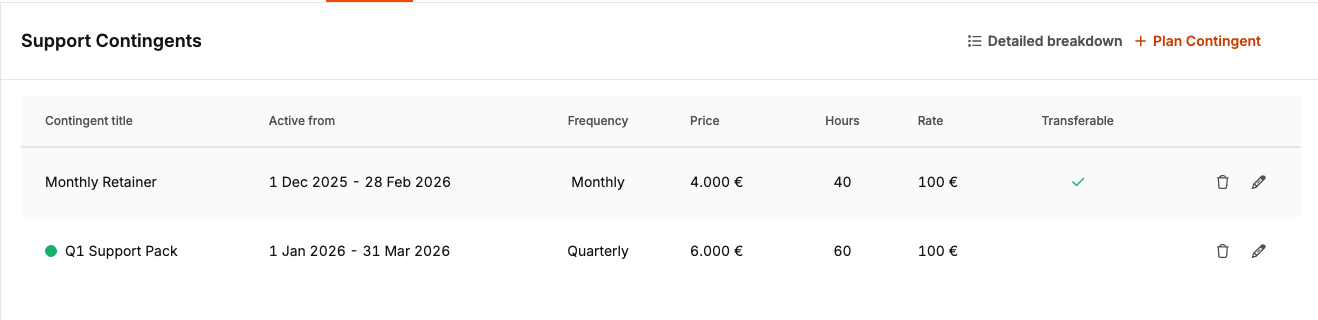
Support contingents are available only for Support-type projects. Navigate to Project Settings → Billing → Support Contingents. You'll also see contingent progress in the project overview and in the invoice preparation screen when creating invoices for support projects.
Open a Support project and go to Project Settings → Billing → Support Contingents.
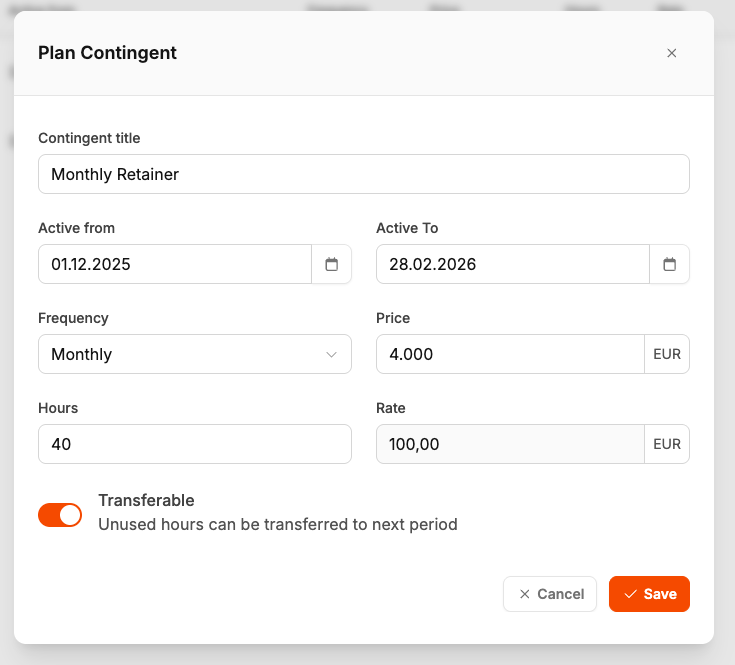
Click Plan Contingent.
Fill in: Contingent title (e.g. "Monthly Retainer"), Active from / Active to, Frequency (Monthly, Quarterly, Yearly, or Once), Hours, Price, and Transferable (whether unused hours roll over).
Click Save.
Each task can be marked as eligible for support contingent billing. In the task sidebar, use the Support contingent toggle to enable or disable it. Only tasks with this enabled are considered when creating invoices.
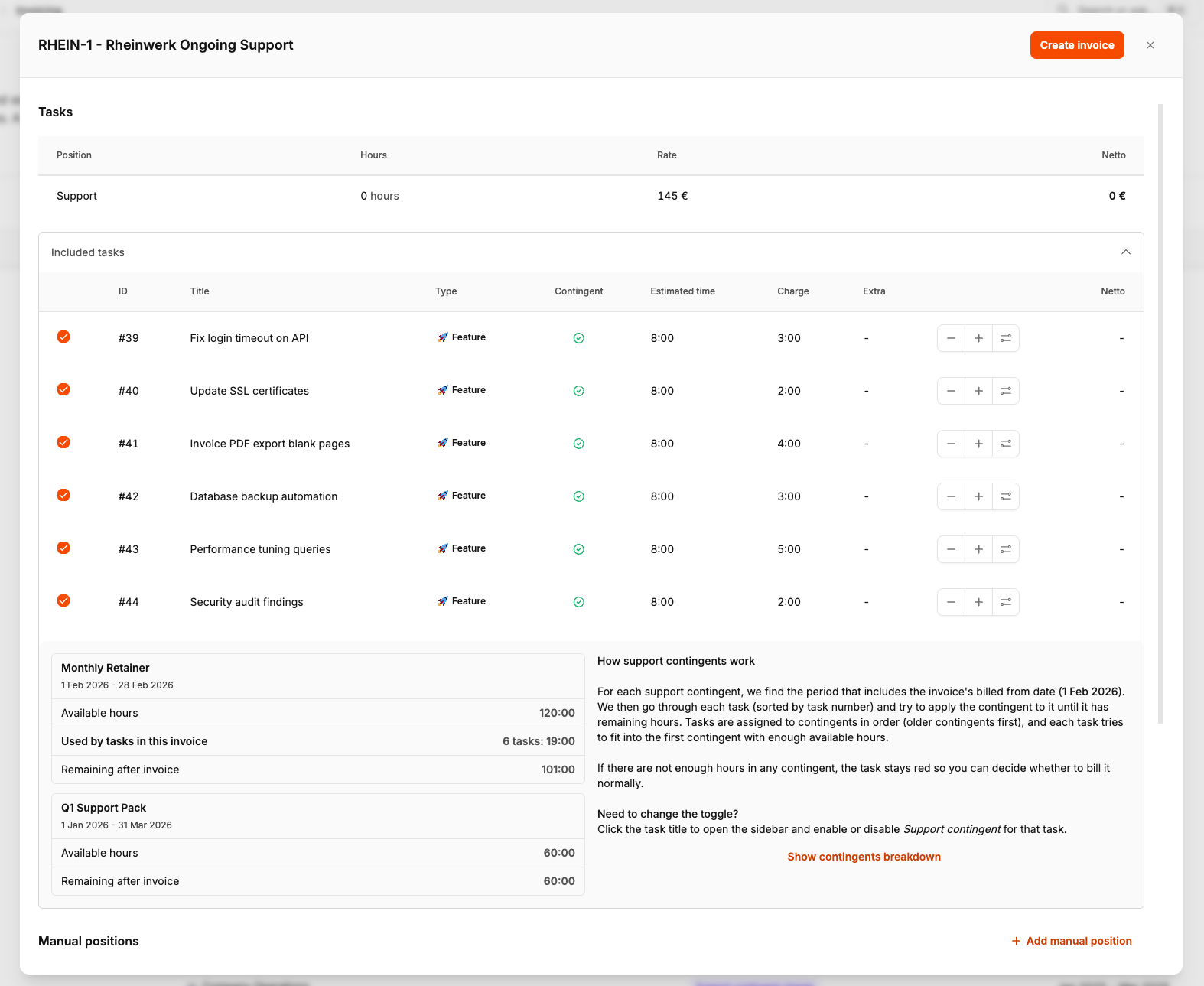
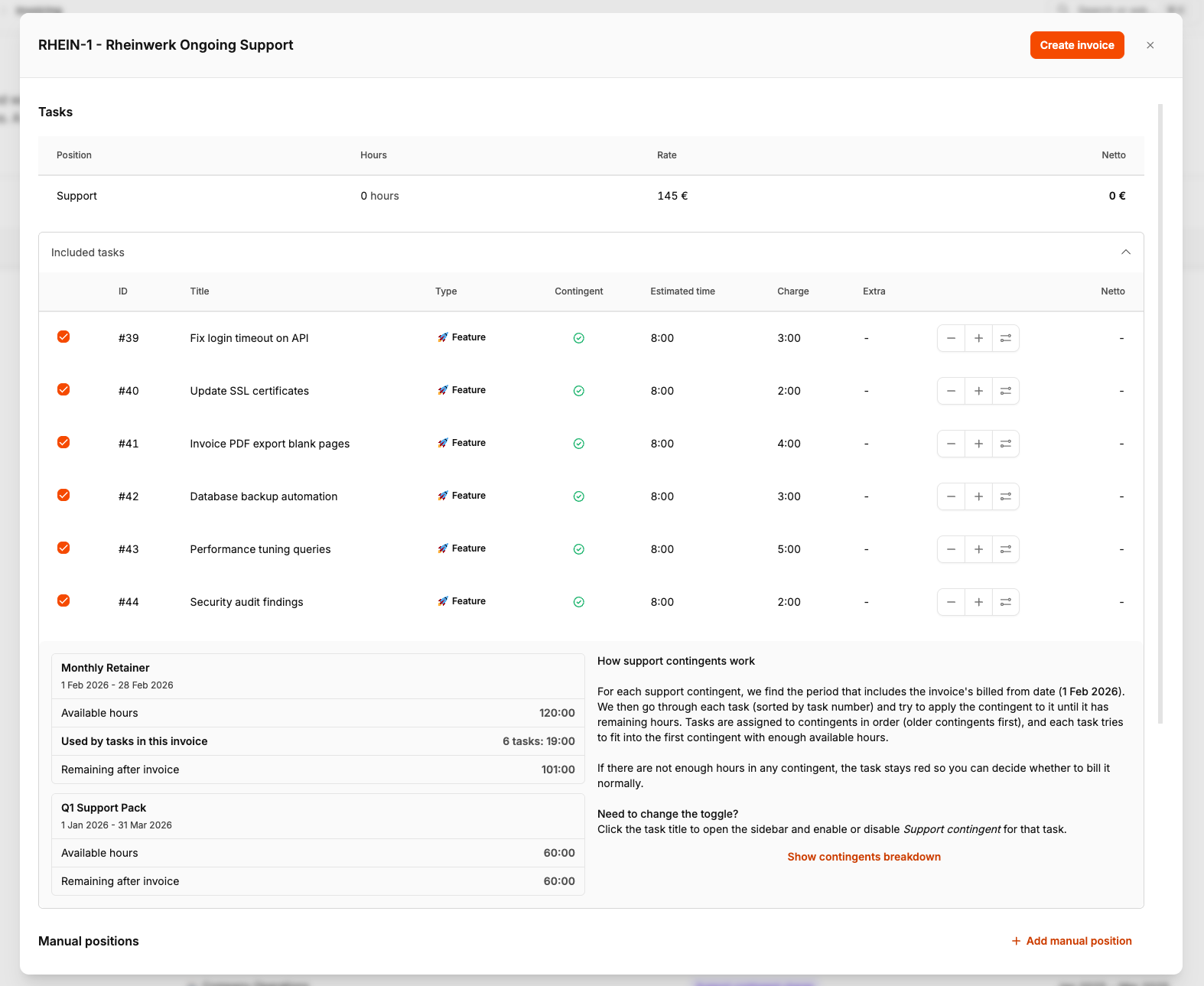
When you create an invoice: a green checkmark means the task is covered by a contingent; a red icon means the task has support contingent enabled but there aren't enough hours — you can bill it normally or leave it for a later invoice. Tasks are processed in order (by task number) and assigned to the first contingent with enough available hours.
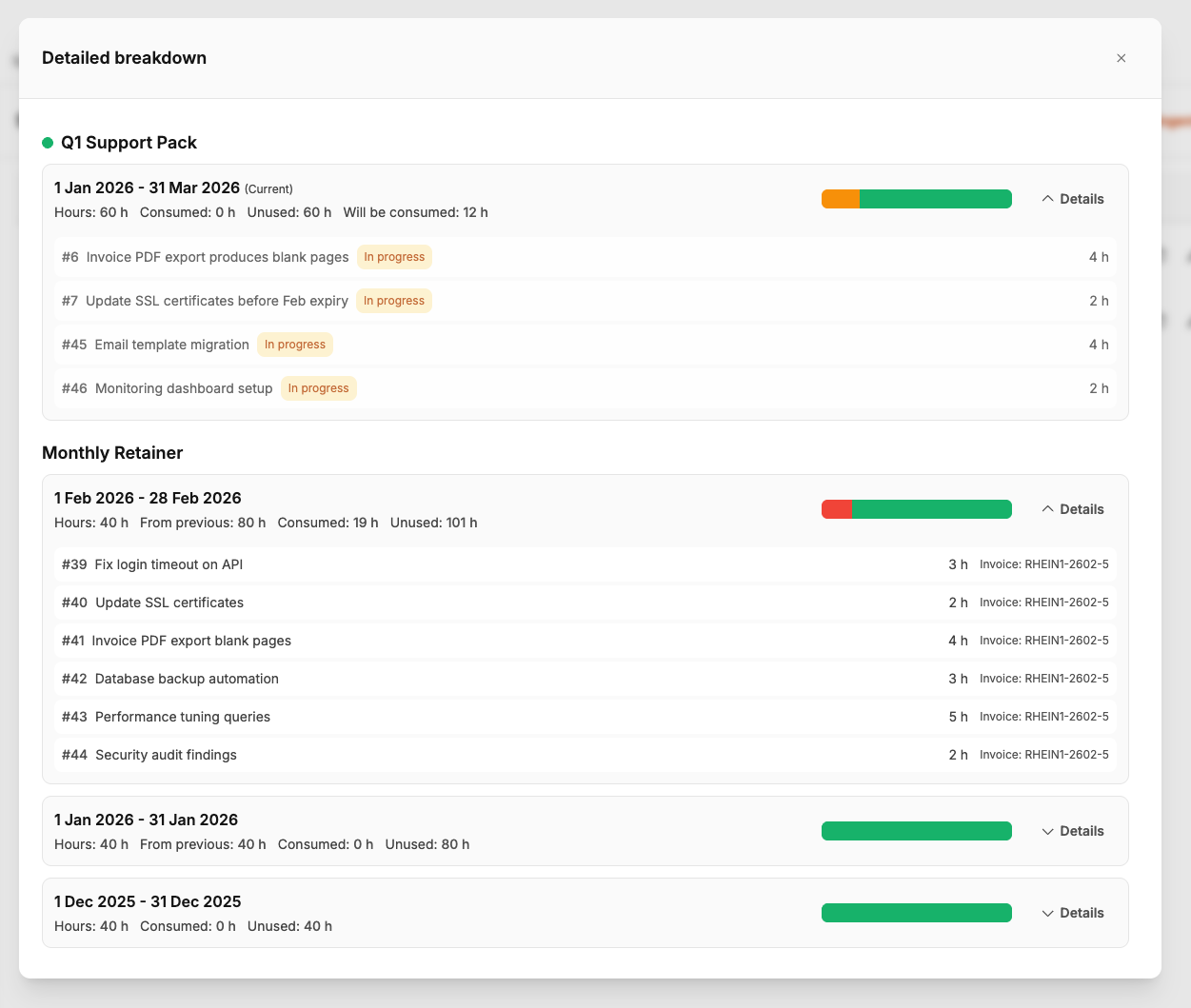
Click Detailed breakdown (in the project overview or invoice preparation) to open a modal showing each contingent and its periods: Hours, From previous, Consumed, Will be consumed, and Unused. Expand a period to see the tasks that consumed or will consume it.
When you create an invoice for a support project in Billing → Invoicing, the system combines retainer charges and task hours into a mixed invoice. Tasks assigned to contingents don't appear as separate line items — they consume hours from the contingent instead.
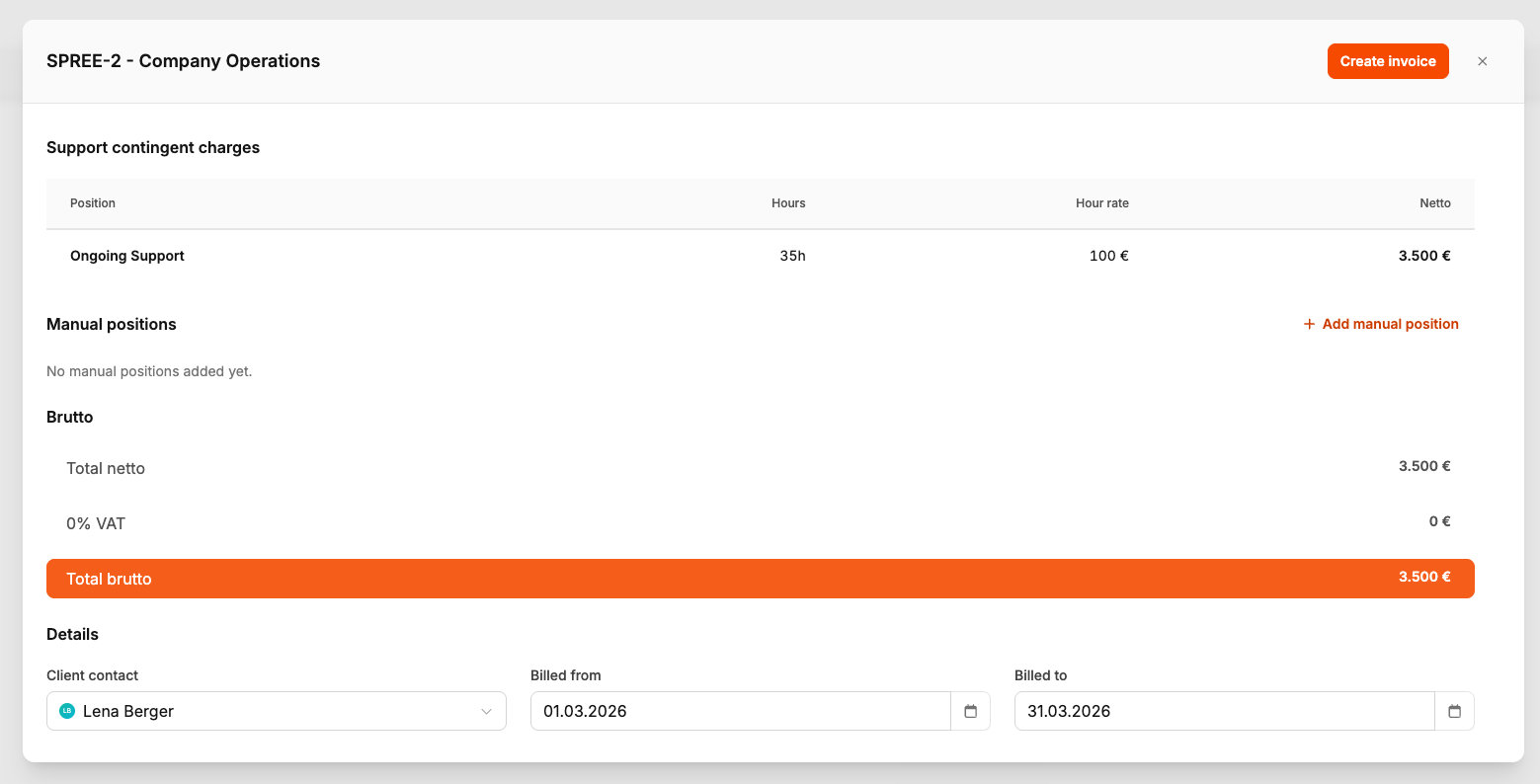
In the invoice preparation screen you'll see Included tasks with contingent indicators (green checkmark = covered, red = not enough hours), Show contingents breakdown to preview period-by-period consumption, and Support contingent charges — line items that bill the retainer fee for each contingent period.
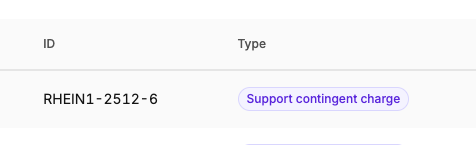
Each contingent period that has consumed hours appears as a Support contingent charge line item on the invoice — identified by the purple badge. The charge uses the contingent's price for that period; consumed task hours are not billed separately.
Toggle support contingent (Team Leader, CEO by default) — enable or disable support contingent billing per task. See support contingent details — view the detailed breakdown modal with period-by-period consumption.
