Automations let you run the Leadtime AI agent on autopilot. Define a trigger — a schedule, an event in your workspace, a Slack message, or an inbound webhook — write a prompt that tells the agent what to do, and let it handle the rest. Think of automations as recurring agent tasks that run without you lifting a finger.
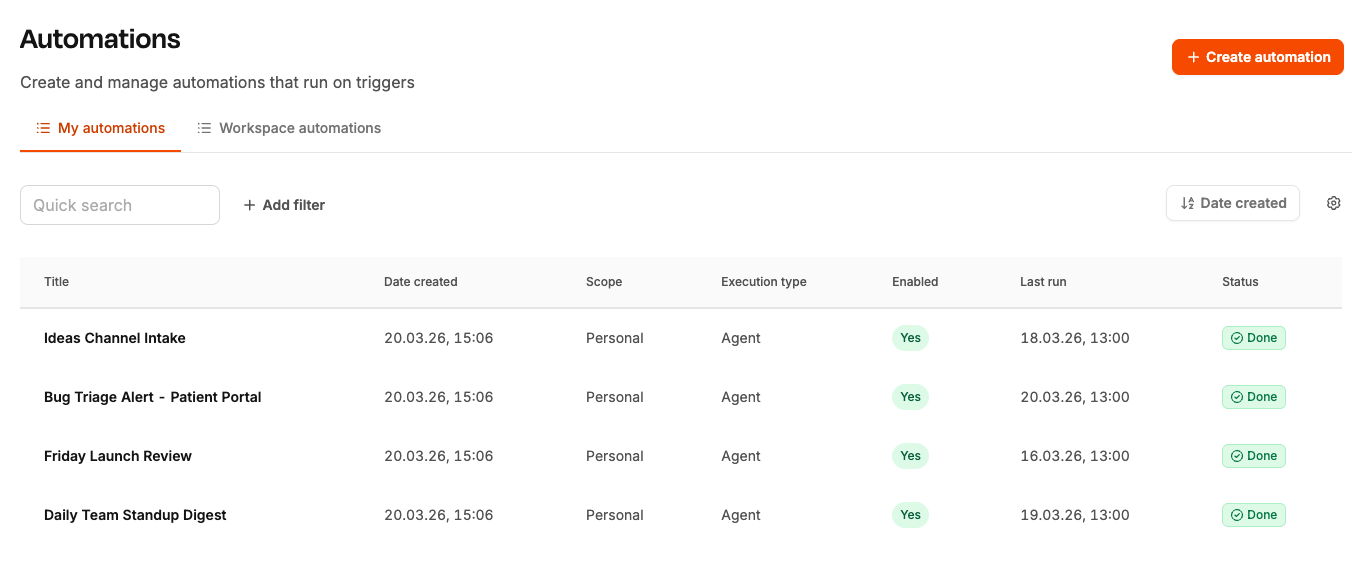
Open Automations from the main menu and click + Create automation. You'll see a dialog where you configure four things: a title, one or more triggers, a prompt, and a few settings on the right.
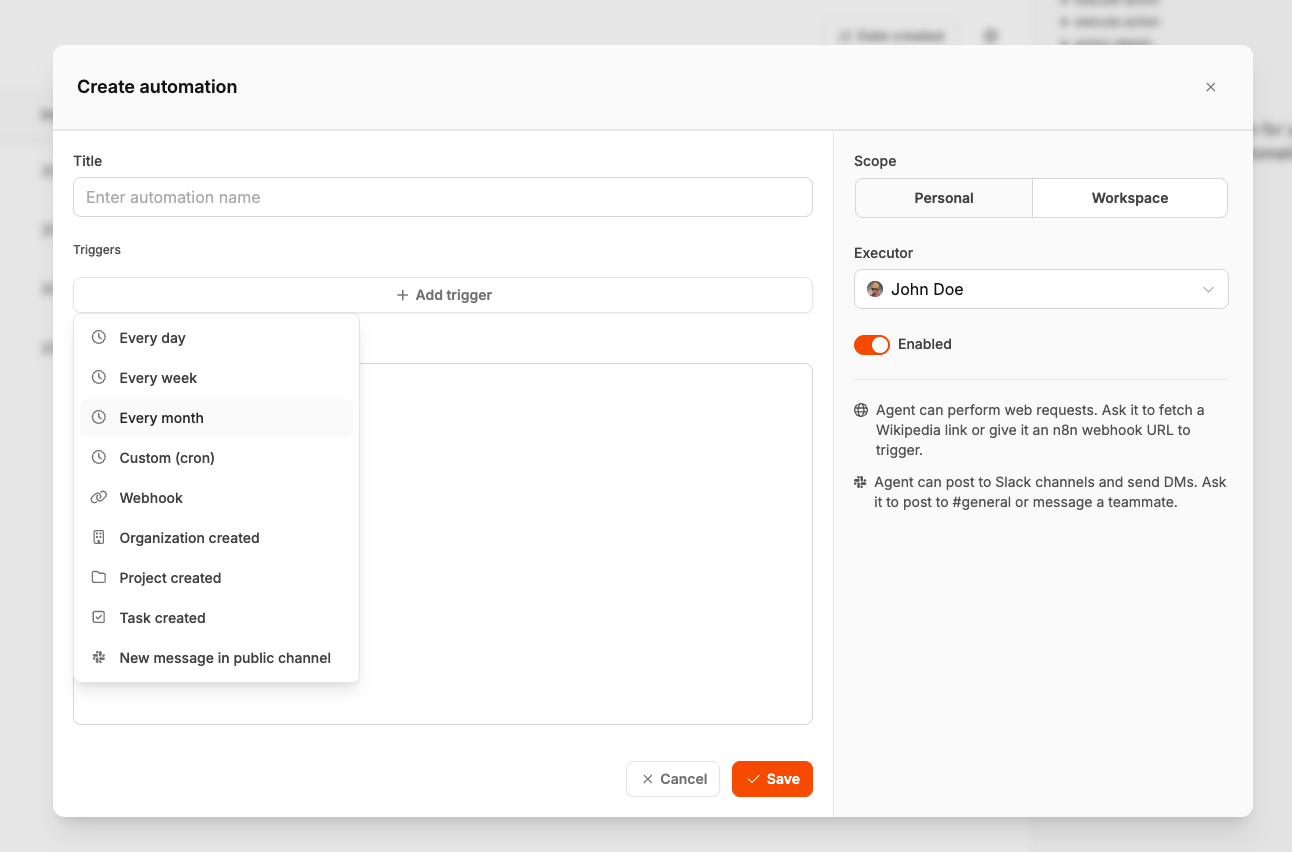
Scope: Choose Personal (only you can see and manage it) or Workspace (visible to your whole team).
Executor: The user identity the agent runs under. Pick yourself or a bot user for service-account style execution.
Enabled: Toggle the automation on or off without deleting it.
Every automation needs at least one trigger — the event that starts it. You can add multiple triggers to a single automation. Click + Add trigger and pick from the menu:
Every day — runs once daily at a time you set (in your workspace timezone).
Every week — runs on a specific weekday and time.
Every month — runs on a specific day of the month.
Custom (cron) — for advanced schedules, enter a standard cron expression (e.g. every Friday at 15:00).
Organization created — fires when someone adds a new organization.
Project created — fires when a new project is created. Optionally filter by organization.
Task created — fires when a new task is created. Optionally filter by project.
New message in public channel — fires when a message is posted in a Slack channel you specify. Add an optional keyword filter so only matching messages trigger the automation.
Webhook — gives you a unique URL. Any HTTP POST to that URL fires the automation, and the request body is passed to the agent as context. Great for connecting external tools like n8n, Zapier, or custom scripts.
The prompt tells the agent exactly what to do when the automation fires. Write it like you'd brief a colleague: be specific about the goal, the output format, and where to post results.
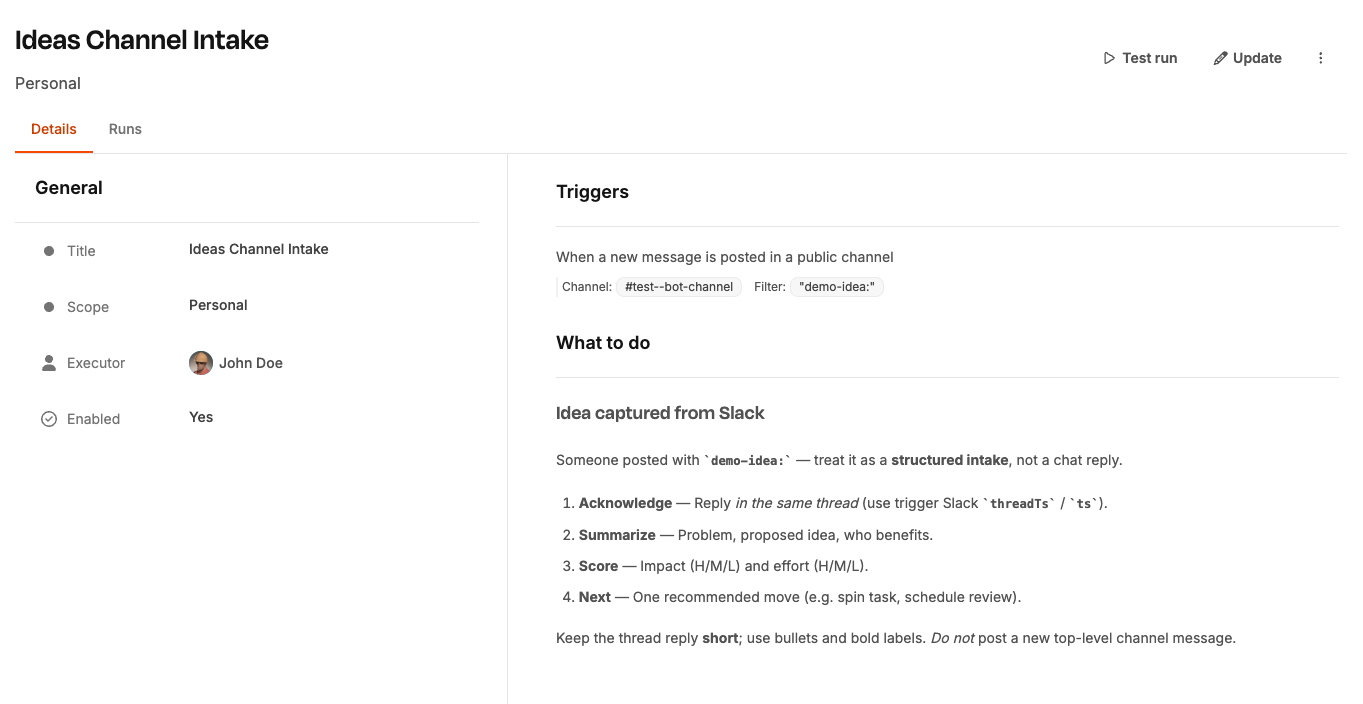
Tips for writing good prompts:
Structure your instructions with headings and lists — the agent reads rich text.
Be explicit about what to post and where (e.g. "post a summary to #general").
Mention the output format you want — bullet list, numbered steps, table, etc.
The agent can post to Slack channels, send DMs, fetch web pages, and work with your Leadtime data — mention these capabilities in your prompt when needed.
Every time an automation fires, a run is created. Switch to the Runs tab on any automation to see its full history — including status, a short summary, and when it ran.
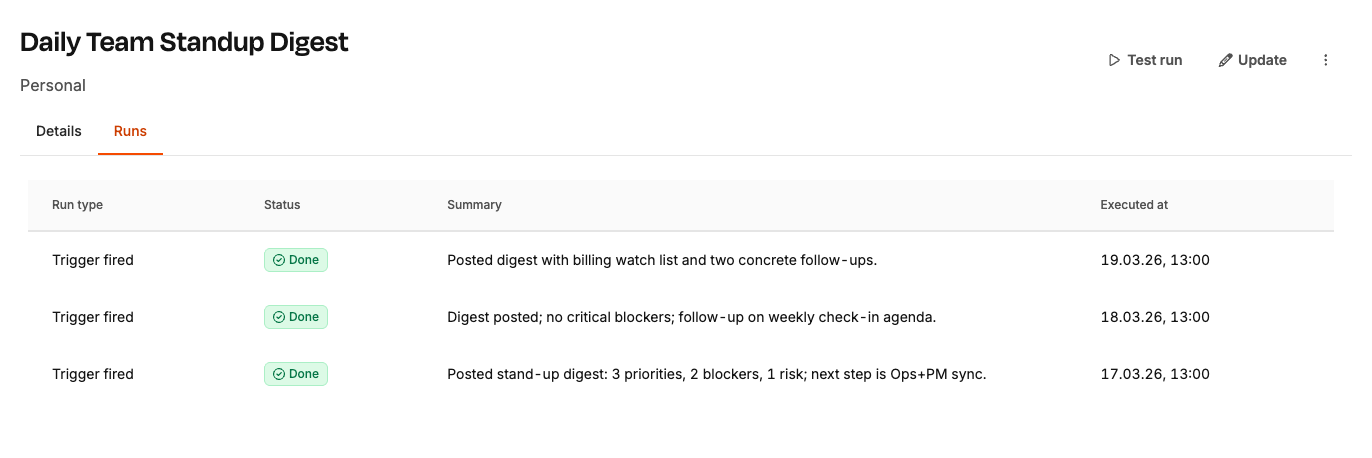
Click any run to open the Run details — you'll see the full conversation: the prompt the agent received and the response it produced.
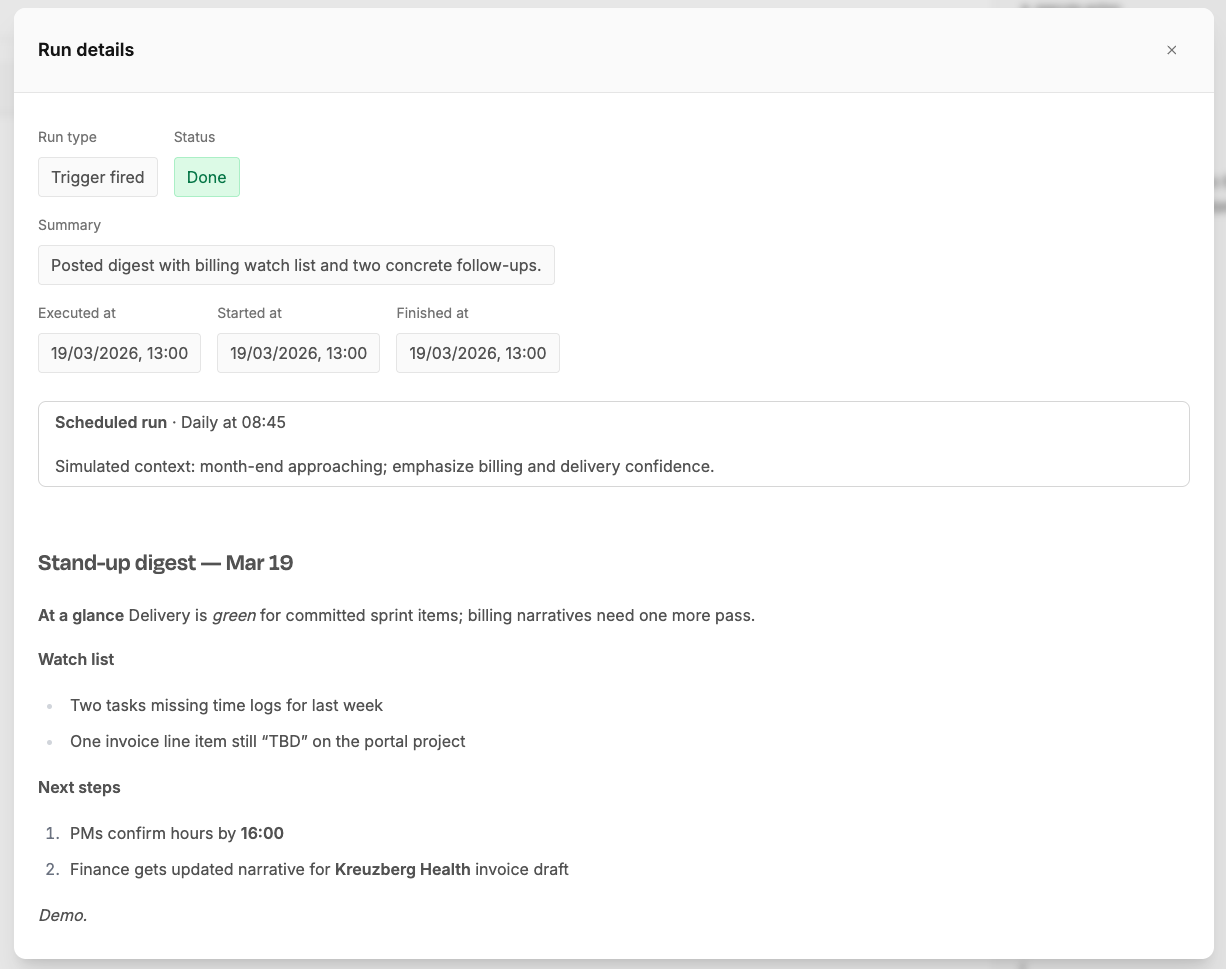
You can also trigger a run manually with Test run — useful when writing a new prompt and iterating on the output.
Manage personal automations — create and run your own automations. Available to Staff, Team Lead, and CEO roles.
Manage workspace automations — create and run shared automations visible to the whole workspace. Available to Team Lead and CEO roles.
Guest users don't have access to automations.
Need a task to repeat on a schedule — weekly invoice runs, monthly reports, quarterly reviews? Instead of remembering to create it each time, turn it into a recurring task with one click.
Open any task and click the repeat icon (↻) in the toolbar — right next to the report button. The agent reads the task's title, description, project, assignee, and priority, picks a sensible schedule from context ("Monthly financial report" → once a month, "Weekly invoice processing" → every week), and creates a workspace automation that recreates the task on that schedule.
The automation prompt preserves the original task's full rich-text description, so every recurring copy looks exactly like the template. You can review and adjust the automation afterwards — change the schedule, tweak the prompt, or switch to a different assignee.

Here are a few ideas to get you started:
Recurring tasks — open any task, click the repeat icon, and the agent creates an automation that recreates it on a schedule. Perfect for monthly reports, weekly invoicing, quarterly reviews, or bi-weekly payroll.
Daily standup digest — every morning at 08:45, the agent reviews open tasks and posts a summary with priorities, blockers, and risks to your team channel.
Weekly portfolio health check — every Monday, the agent scans all active projects and flags anything that needs leadership attention — overdue milestones, scope creep, or stale tasks.
Bug triage alert — triggered when a new task is created in a specific project, the agent classifies severity, describes user impact, and recommends immediate next steps.
New client onboarding — triggered when a new organization is created, the agent posts a welcome checklist: assign account owner, create project shell, schedule kickoff call.
Slack idea intake — when someone posts a message starting with a keyword (e.g. idea:) in a channel, the agent replies in-thread with a structured assessment: problem, who benefits, impact vs. effort, and a recommended next step.
Sales lead qualification — an external form or CRM sends a webhook with lead data. The agent classifies urgency, suggests a reply, and posts the summary to your sales channel.
Month-end billing review — once a month, the agent checks for missing time logs and unlinked invoice items, then posts a pre-billing checklist so nothing slips through.
Project kickoff brief — triggered when a new project is created for a specific client, the agent drafts a scope outline, suggested milestones, and week-one action items.
