
Objects are not only available in the main objects area. You can also work with them directly inside organization and project detail views. This makes it easier to understand which objects belong to a customer and which objects are currently connected to a specific project.
Objects in organizations
Inside an organization, the Objects tab shows all objects that belong to that organization.
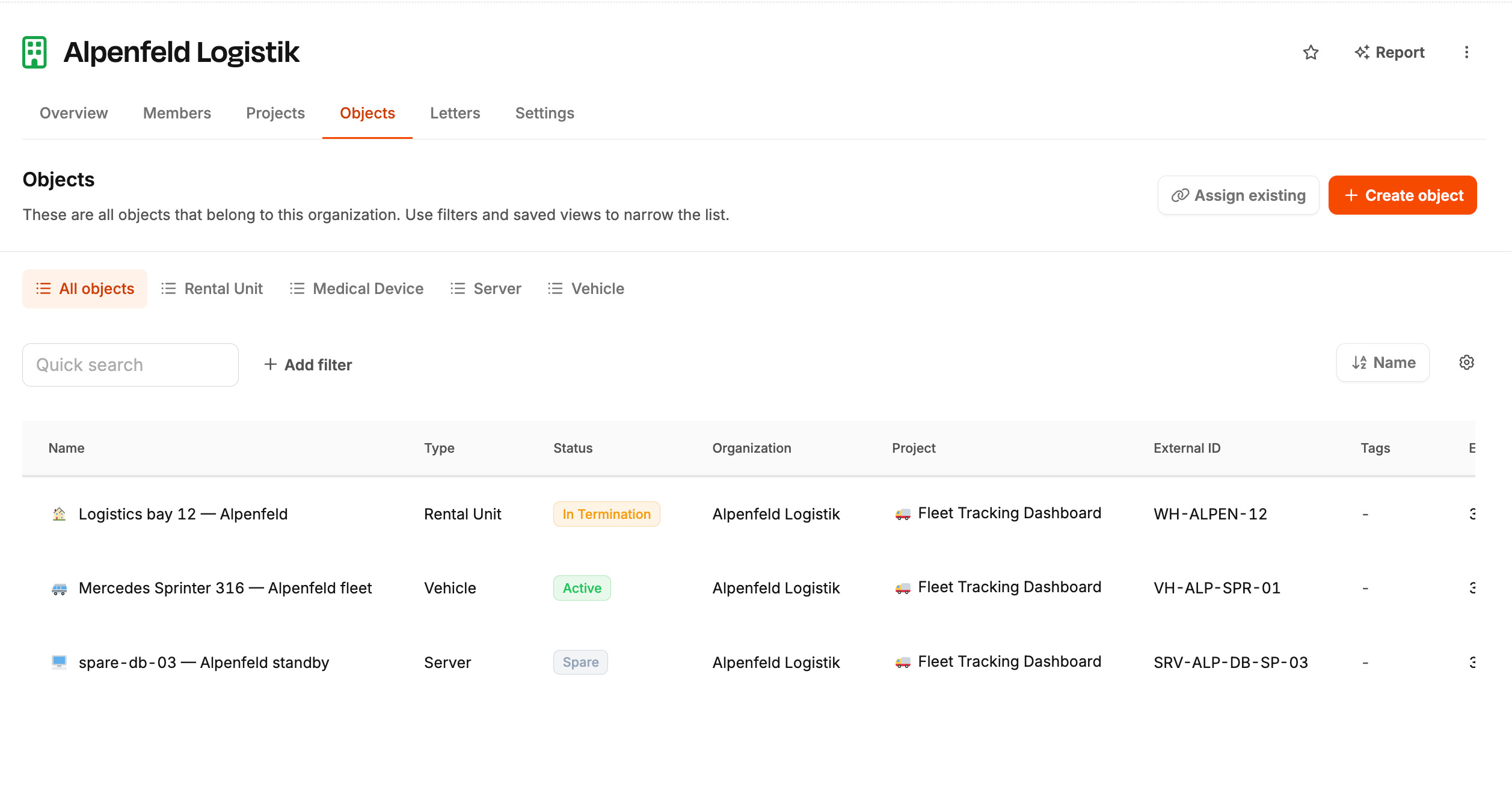
This is useful when you want to understand a customer's complete object landscape at a glance.
Typical use cases:
See all customer objects: view all objects linked to one organization
Open details fast: jump straight into the object detail page
Create in context: create a new object with the organization already prefilled
Maintain relationships: keep the object list aligned with the customer structure
This is especially practical when one customer has many assets, units, or managed items.
Objects in projects
Inside a project, the Objects tab shows all objects currently assigned to that project. It uses the same kind of list and actions as the workspace Objects page (within the project context).
This helps you answer questions such as:
Which objects are part of this project right now?
Which items are currently covered by this contract or service context?
Which objects should be added or removed?
It is the best contextual view when you want to manage the operational connection between objects and a specific project.
Create and assign objects
From these contextual tabs, you can usually either create a new object or assign an existing one.
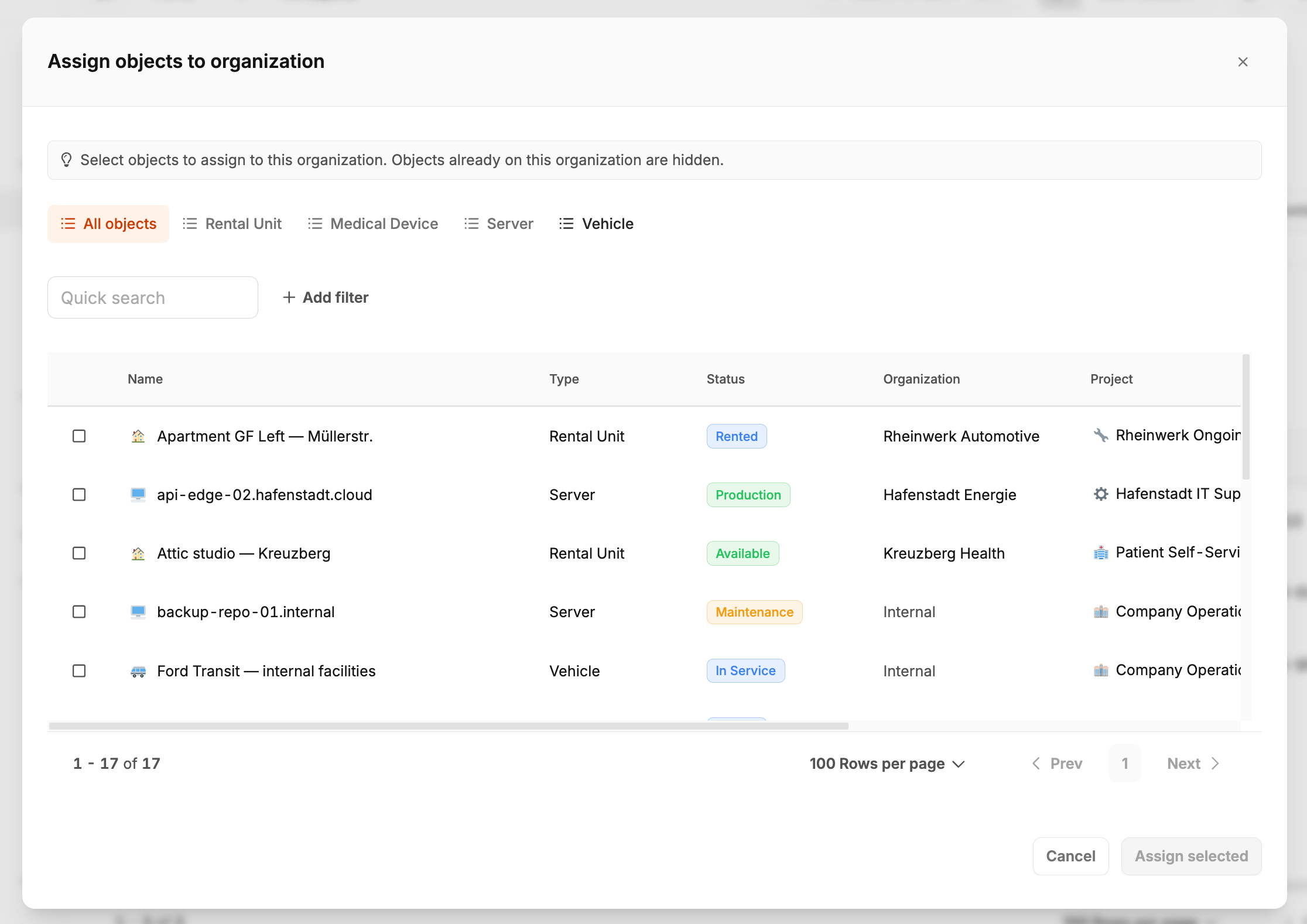
There are two common workflows:
Create object: useful when the object does not exist yet and should immediately belong to this organization or project
Assign existing object: useful when the object already exists and only needs to be connected to the current context
This saves time because you do not have to leave the current detail view just to maintain the relationship.
Unlink objects
If an object should no longer belong to the current context, you can unlink it.
Typical examples:
An object no longer belongs to an organization
A project assignment has ended
An object was linked by mistake
Unlinking helps keep both organization and project views accurate without deleting the object itself.