Workspace administrators maintain the Form Library under Administration → Workspace settings → Form templates. You need the Manage form templates permission (role group Form templates) to see this area. The screen mirrors other workspace tools: a categories grid and a templates grid; clicking a template opens its detail view with a fields grid.
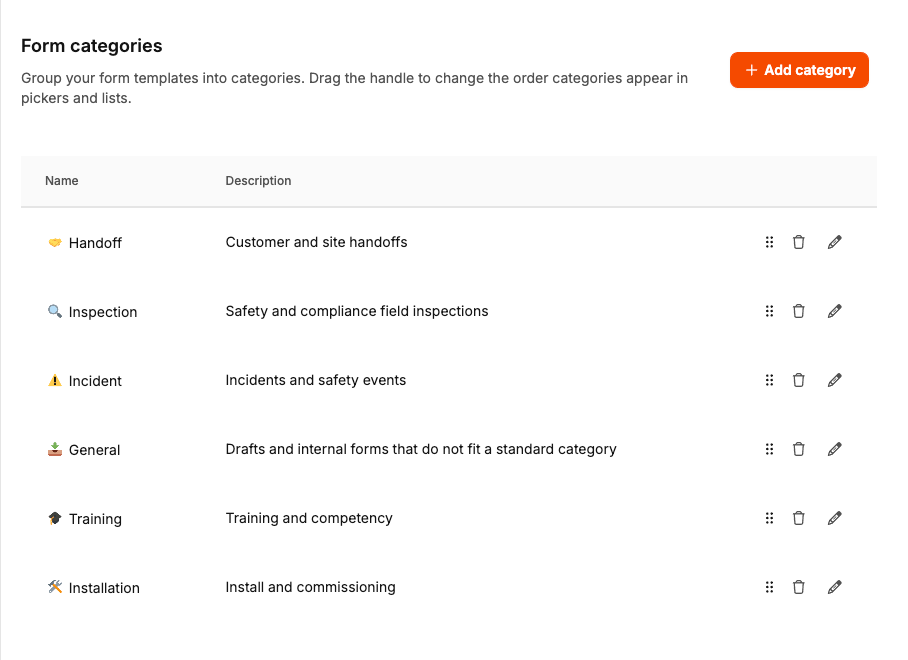
Categories group templates for browsing—similar to product categories. Every template must belong to one category.
Name and description: Shown in pickers and lists; descriptions help people pick the right template.
Order: Drag the handle to change the order categories appear in.
Translations and icons: Localize names and pick an icon so the library stays scannable.
Cleanup: You can remove categories you no longer need when the grid allows it.
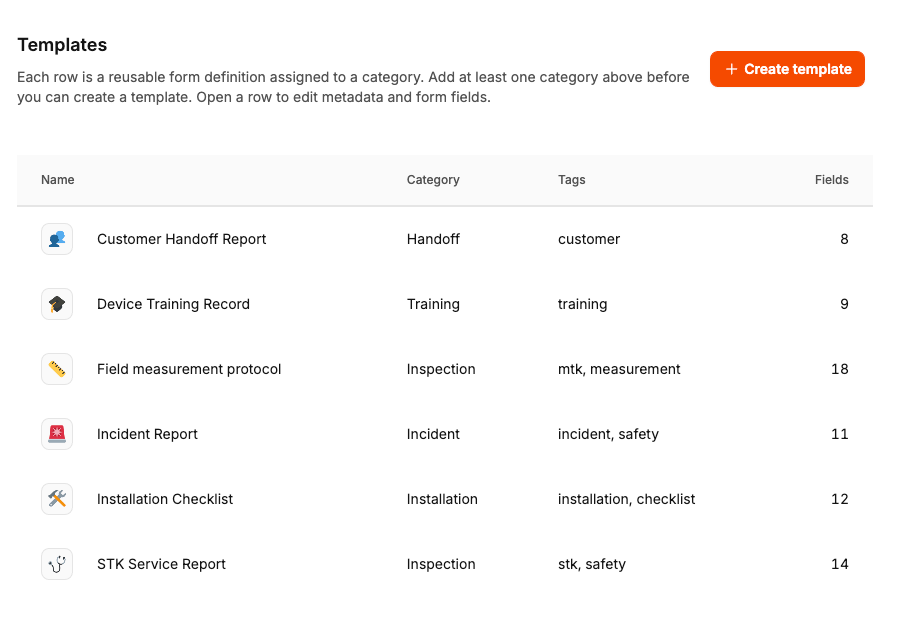
Create a template from the list, set its name, description, category, optional tags (same tag picker as elsewhere in the workspace), and icon or sort if your workspace uses them. Duplicate an existing template when you want a close variant.
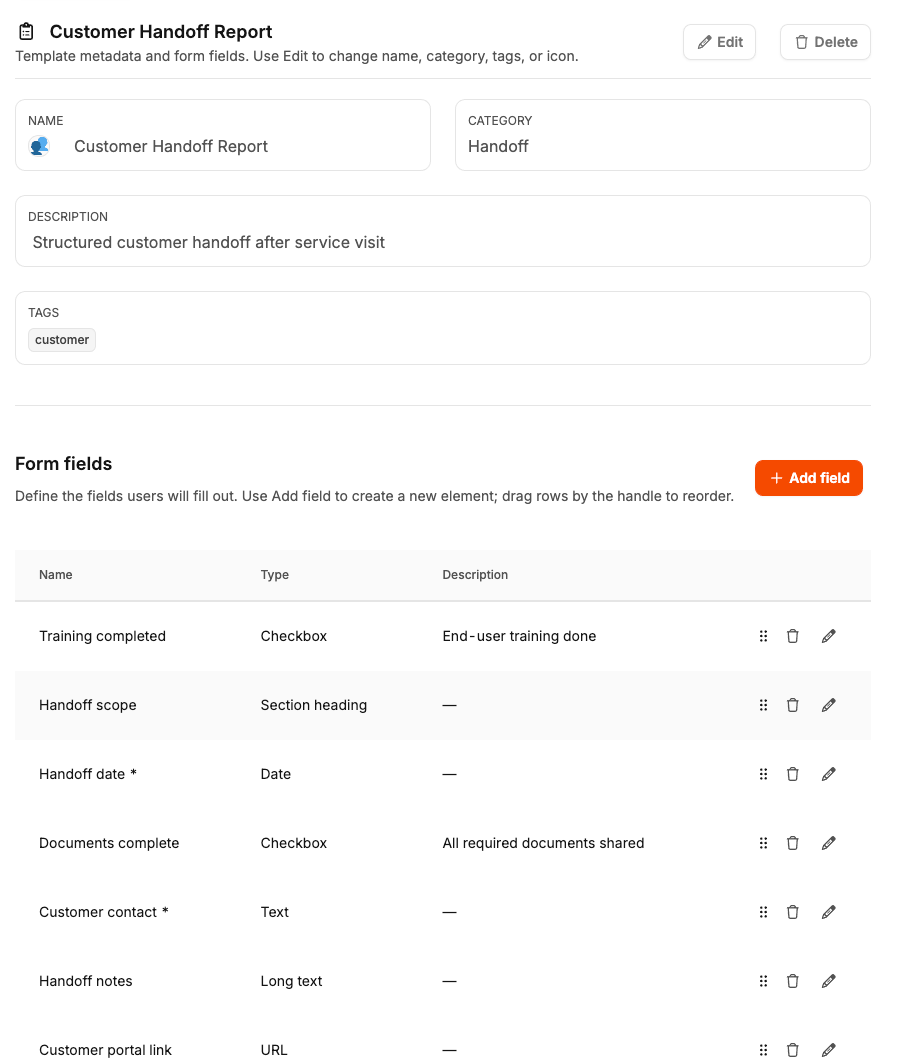
Inside the template detail, the fields grid is your canvas: add rows, choose a field type, reorder via drag-and-drop, and open each row to edit settings.
Layout: Width per row (full or half), optional defaults, read-only or hidden flags.
Validation: Length limits, numeric min/max, decimals, and time on dates where the type supports it.
Choices: For selects and radios, maintain options in the field editor like custom fields.
Section headings: Split the form visually without collecting data.
Tags help you filter templates in the library. They use the same tag experience as other workspace objects, so teams can keep large libraries organized without changing how people fill forms on tasks.

