Use Calendar sync to subscribe your personal Leadtime schedule to Google Calendar, Outlook, Apple Calendar, or any app that supports an iCalendar (ICS) web feed. Pipeline items you are scheduled for show up as calendar events.
Open My profile from your avatar (top right) or from the bottom of the main sidebar, then choose Calendar sync in the left-hand tabs.
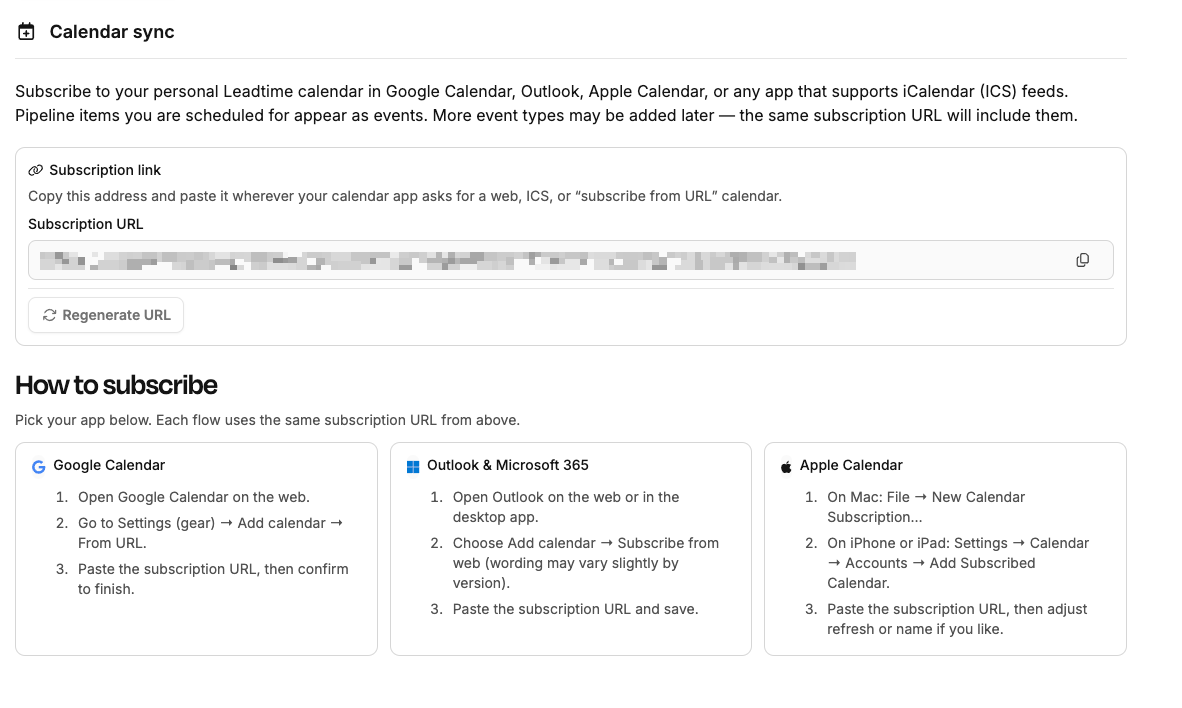
The feed reflects your Leadtime pipeline assignments as external calendar events. Additional event types may be added later — the same subscription URL will pick them up automatically.
Compatible with “subscribe from URL”, “from internet”, or ICS-style subscriptions in most calendar apps.
Your calendar app refreshes the feed on its own schedule; timing depends on the provider.
Under Subscription link, copy the address and paste it wherever the app asks for a web, ICS, or “subscribe from URL” calendar.
Use the copy button beside the field so you do not mistype the URL.
If a link was shared by mistake or you want to revoke old subscriptions, click Regenerate URL. This invalidates the previous address — update every calendar that was using it.

The in-app section shows quick steps for Google Calendar, Outlook / Microsoft 365, and Apple Calendar. Each flow uses the same subscription URL from above.
Open Google Calendar on the web.
Go to Settings (gear) → Add calendar → From URL.
Paste the subscription URL and confirm.
Open Outlook on the web or desktop.
Choose Add calendar → Subscribe from web (wording varies by version).
Paste the subscription URL and save.
On Mac: File → New Calendar Subscription…
On iPhone / iPad: Settings → Calendar → Accounts → Add Subscribed Calendar.
Paste the subscription URL; adjust refresh or display name if you like.
Under Import, add one or more HTTPS iCalendar (.ics) URLs from Google Calendar, Outlook, Apple / iCloud, or any provider that publishes a feed. Leadtime stores only busy/free intervals—not event titles—so meeting subjects stay private. Those blocks appear in Planning → Pipeline (and related views) so dispatchers can see when you are busy elsewhere and avoid double-booking you.
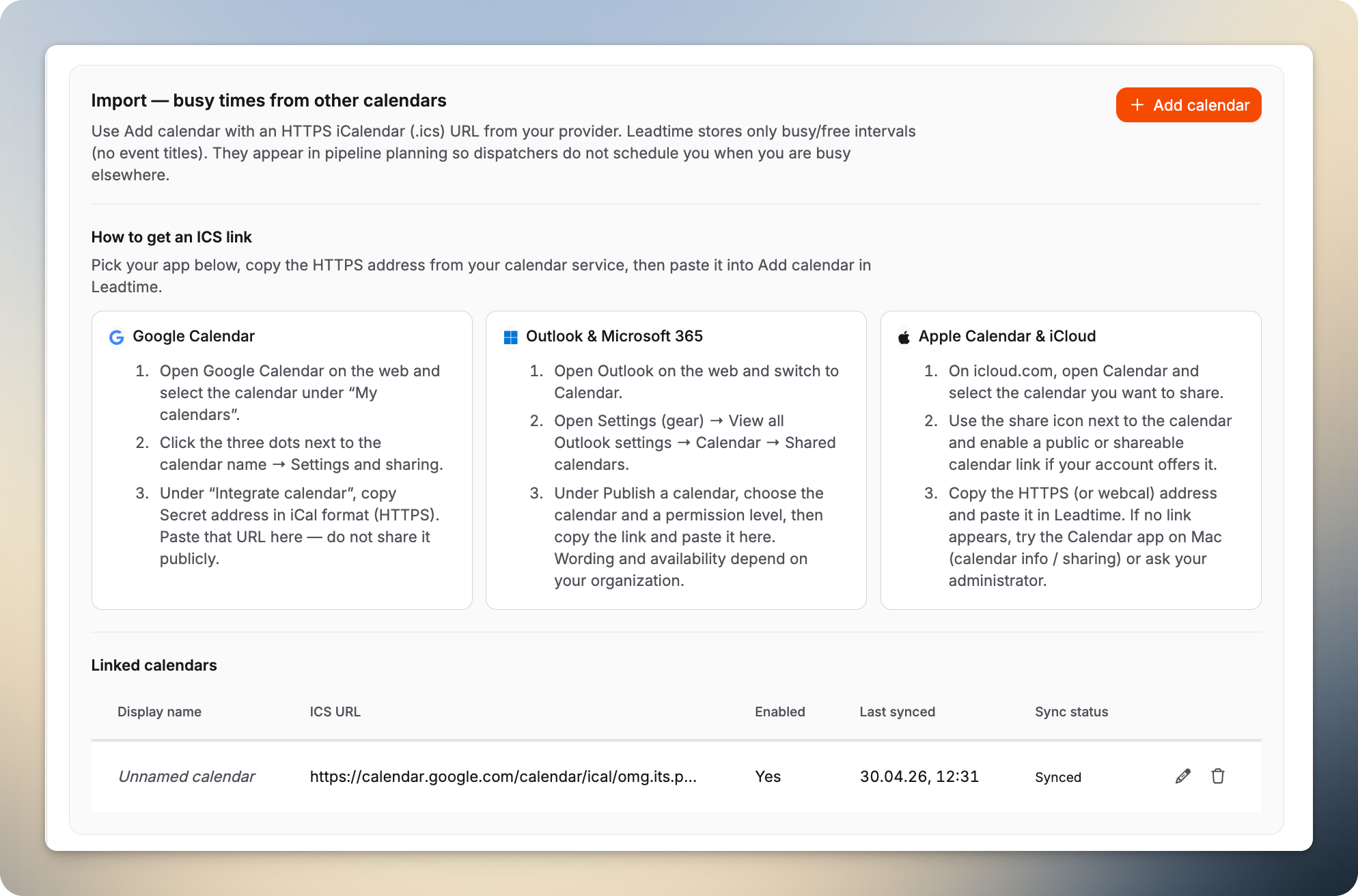
The in-app cards explain exactly where to copy the address in each app (for example Google’s Secret address in iCal format). Paste the URL when you click + Add calendar.
Open Google Calendar on the web and pick the calendar under My calendars.
Use the three dots next to the calendar → Settings and sharing.
Under Integrate calendar, copy Secret address in iCal format (HTTPS). Treat it like a password—anyone with the link can read busy times until you reset it in Google.
Open Outlook on the web and switch to Calendar.
Settings (gear) → View all Outlook settings → Calendar → Shared calendars.
Under Publish a calendar, choose the calendar and permission level, then copy the link. Wording and availability depend on your organization.
On icloud.com, open Calendar and select the calendar you want.
Use the share icon and enable a public or shareable link if your account offers it.
Copy the HTTPS (or webcal) URL. If no link appears, try Calendar on Mac (sharing / info) or ask your administrator.
The Linked calendars table lists each feed, last sync time, and status. Use edit to rename or change the URL, or remove a link when you no longer want those busy times in Leadtime.
