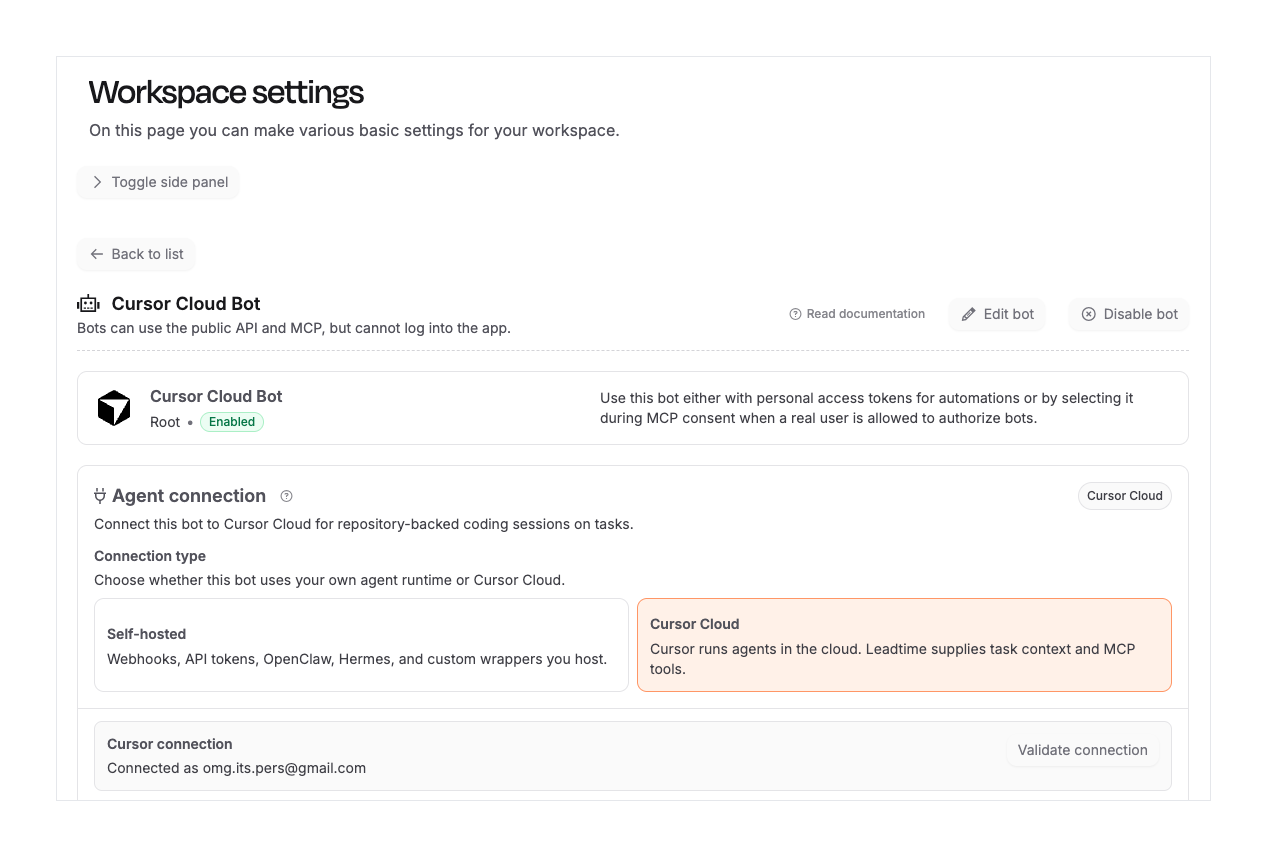
Cursor Cloud lets you connect a Leadtime agent to Cursor so tasks can be assigned to an AI coding agent. Leadtime sends the task context, comments, project settings, and allowed tools. Cursor works in its cloud environment, then reports back in the task with comments, status changes, and links such as pull requests when relevant.
Assign implementation tasks to an agent that can work in a repository.
Let Cursor use Leadtime task tools to comment, update status, and hand work back to a person.
Use project overrides when one project needs a different repository, model, or tool mode than the agent default.
Run Leadtime-only tasks without a repository by choosing No repository and relying on the Leadtime tools.
Go to Administration -> Workspace settings -> Agents.
Create or open an agent, then choose Cursor Cloud as the connection type.
Paste a Cursor API key and use Validate connection to confirm that Leadtime can reach Cursor.
Choose the default repository. Select No repository if this agent should only use Leadtime tools.
Choose the default model and whether Cursor should create pull requests automatically.
Save the agent settings.

Use Basic mode when Cursor should only read the assigned task, write comments, and update task status.
Use Full Leadtime mode when Cursor is trusted to use broader Leadtime tools for the workspace.
Enable direct API access only for trusted agents. Cursor can run code in its cloud environment, so treat exposed credentials like any other automation secret.
Open a project and go to Settings -> Agents. You can enable or disable a Cursor agent for that project, inherit the agent defaults, or override the repository, model, tool mode, and extra instructions. The resolved settings preview shows what will be used when a task starts.
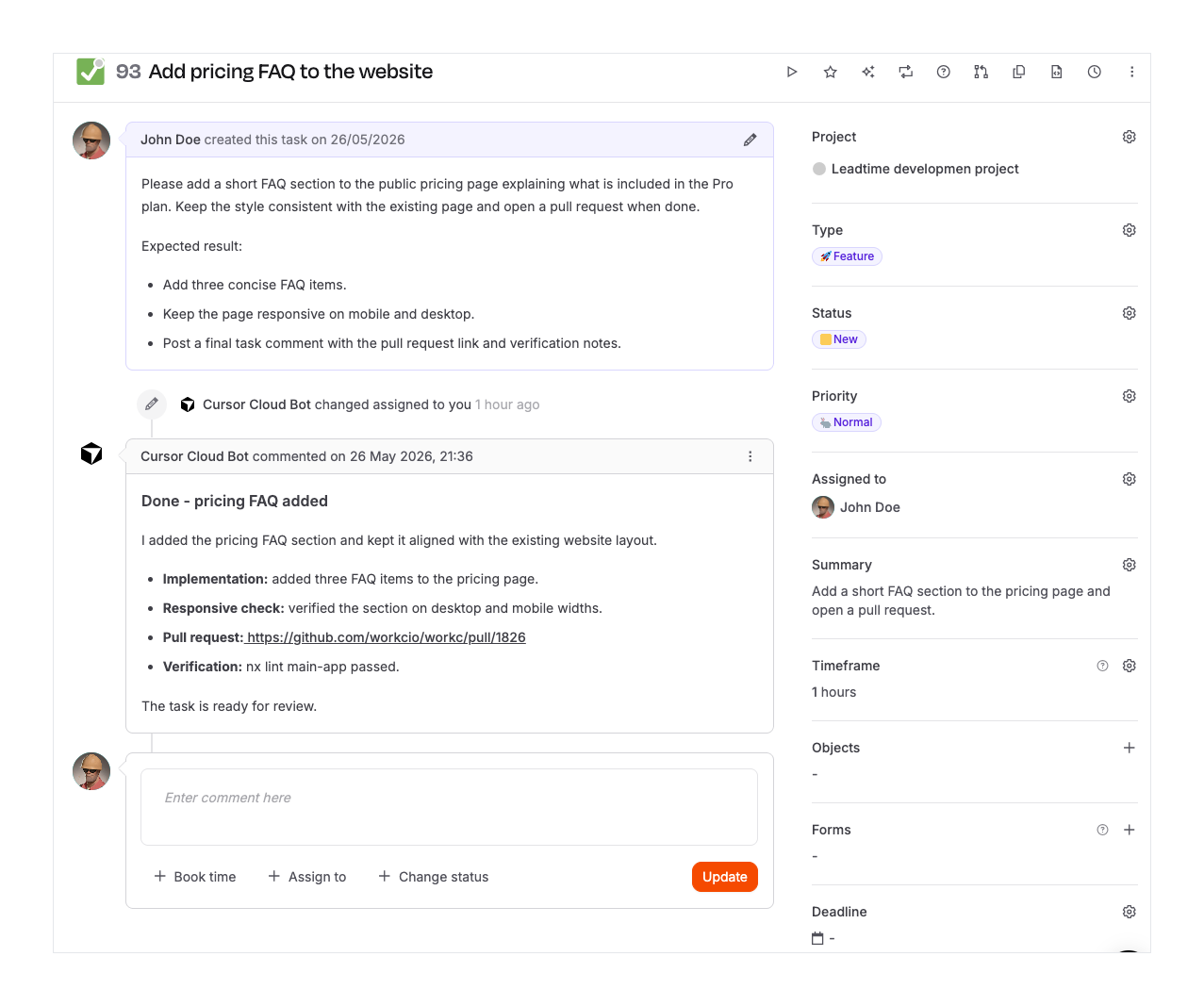
Open a task and assign it to the Cursor agent, or mention the agent in a task comment.
Leadtime creates an agent work session on the task.
Cursor receives the task context and selected Leadtime tools.
While it works, Leadtime shows the agent session and activity in the task timeline.
When finished, Cursor should post a task comment, update the status when appropriate, and hand the task back to the person who delegated the work.
Task history keeps the work visible. A running agent session appears in the task timeline, task lists can show that an agent is active, and finished work remains as comments and session history. If Cursor opens a pull request, the final comment should include the pull request link.